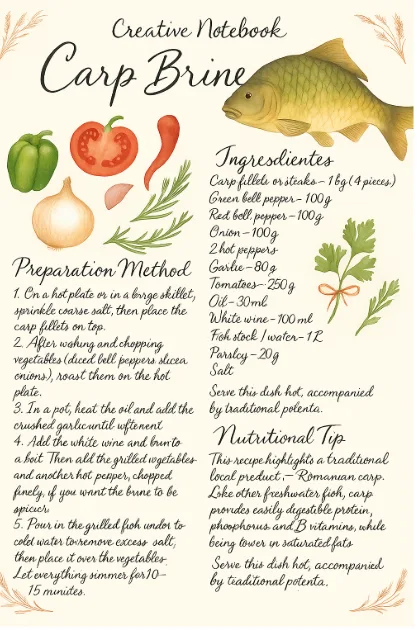
The Format Dilemma: When Portable Documents Meet Visual Workflows
The Portable Document Format (PDF) has been the undisputed standard for document interchange since Adobe introduced it in 1993. Built on a PostScript foundation, a PDF is not merely an image; it is an intricate container housing vector paths, embedded TrueType and OpenType fonts, CMYK/RGB color profiles, raster imagery, metadata layers, and interactive form fields. This structural complexity guarantees that a contract, blueprint, or graphic asset appears virtually identical across every operating system, screen, and physical printer.
However, this bulletproof structural integrity becomes a major liability in visual, digital-first environments. Web content management systems (CMS), presentation software like PowerPoint and Keynote, social media feeds, messaging platforms, and digital asset management (DAM) systems frequently reject PDFs or render them through clunky, insecure native plugins. When an art director needs to drop a client-approved collateral page into a presentation, or a developer needs to display a digital certificate inline on a responsive web page, the vector container must be transformed into a universal, flat raster asset: the JPEG (JPG).
Converting a multi-layered, vector-rich document into a rasterized array of pixels without losing typographic sharpness, degrading color profiles, or exposing confidential information requires understanding the underlying mechanics of document rasterization.

The Structural Differences: Vector Encapsulation vs. Raster Grids
To achieve clean conversions, one must first recognize the fundamental architectural gap between PDFs and JPGs:
- Vector Paths vs. Fixed Pixels: PDF text and vector artwork are mathematically defined curves (Bézier curves). You can zoom into a vector letterform indefinitely without discovering pixel borders. A JPG, by contrast, relies on a fixed two-dimensional grid of pixels mapped to discrete color values. Converting vector to raster means sampling those smooth mathematical curves at a defined density (dots per inch or DPI).
- Color Spaces: PDFs natively accommodate print-oriented CMYK (Cyan, Magenta, Yellow, Key/Black) and spot colors (such as Pantone). JPG is fundamentally an RGB (Red, Green, Blue) raster format engineered for screen display and web transmission. Converting from CMYK to RGB without color profile awareness can cause dramatic, muddy color shifts.
- Compression Paradigms: PDFs encapsulate lossless text streams alongside mixed-compression assets (Flate, JPEG 2000, CCITT). JPG uses the Discrete Cosine Transform (DCT) lossy compression algorithm, which clusters pixel blocks into 8×8 arrays and discards high-frequency chromatic details that the human eye is less sensitive to perceive. Poor rasterization settings amplify compression artifacts, creating unsightly blur and “mosquito noise” around high-contrast typography.
The Hidden Hazards of Legacy Cloud Converters
For more than a decade, the typical workflow for transforming a PDF into an image relied on server-side “cloud” conversion utilities. While ostensibly convenient, this paradigm exposes corporate and personal data to severe operational and compliance risks:
- Data Leakage and Privacy Breaches: Legacy converters require uploading your file to a remote staging server. The moment an employee uploads an unreleased financial statement, proprietary schematic, legal deposition, or scanned passport, document provenance is broken. Server logs, unsecured cloud storage buckets, and automated data-scraping pipelines routinely retain, index, or expose uploaded assets long after the user closes their browser tab.
- Regulatory Non-Compliance: Transmitting documents containing personally identifiable information (PII) or protected health information (PHI) across undocumented remote servers can violate stringent data protection frameworks, including the EU General Data Protection Regulation (GDPR), California Consumer Privacy Act (CCPA), and HIPAA.
- Artificial Throttling and Watermarking: Traditional web utilities deliberately throttle network speeds, limit uploads to arbitrary file sizes (e.g., 5MB or 10MB), restrict batch page processing, or place intrusive branded watermarks across exported imagery unless a costly recurring subscription is purchased.
The modern web platform renders these centralized server architectures obsolete. By leveraging client-side WebAssembly (Wasm), modern JavaScript rendering engines, and hardware-accelerated HTML5 Canvas pipelines, file rasterization can take place entirely inside your local device’s memory.
⚡ Free Online Tool: PDF to JPG
Process and convert your files directly in your web browser with 100% privacy and zero server uploads. Fast, free, and unlimited:
How Client-Side In-Browser Conversion Works
When you use the Agenda Creativa PDF to JPG converter, your document is never transmitted across the internet. Instead, the conversion pipeline operates completely within your local web browser session using modern Web APIs:
- Local Document Ingestion: The browser reads your PDF using the HTML5 File API and loads the binary data into the browser’s sandbox memory.
- Client-Side Parsing: A local WebAssembly and JavaScript compilation of a document rendering engine parses the PDF syntax, maps font dictionaries, resolves vector geometries, and decodes any embedded raster images.
- Virtual Canvas Rasterization: Each designated page is rendered directly onto a hidden HTML5
<canvas>element at your specified resolution scale factor. During this stage, vectors are translated into raw pixel buffers, fonts are rendered with sub-pixel antialiasing, and color parameters are mapped to the sRGB color space. - Lossy Encoding & Extraction: The raw canvas pixel buffer is encoded into a standardized, optimized JPEG byte array using browser-native image encoders. You can immediately save individual page images or package all pages into a consolidated download—instantly and securely.
Step-by-Step Walkthrough: Converting PDF Pages to High-Resolution JPG
To achieve clean, artifact-free image extracts, follow this reliable conversion process:
Step 1: Open the In-Browser Tool
Navigate to the PDF to JPG Converter. Because the engine runs locally, there is no signup screen, no captcha verification, and no wait queue.
Step 2: Load Your Source File
Drag and drop your PDF into the designated conversion workspace, or click to select the file from your local disk. Since processing is executed via local compute resources, even multi-page documents containing hundreds of pages load instantaneously into the browser context without upload latency.
Step 3: Establish Resolution and Quality Targets
Select your intended output parameters based on your deployment requirements:
- Web / Digital Previews (72 to 96 DPI): Ideal for fast-loading website previews, thumbnail generation, or embedding in email messages where bandwidth conservation is paramount.
- Screen Presentations & High-Density Displays (150 to 200 DPI): The gold standard for keynote presentations, iPad or tablet portfolios, and retina screen graphics. This level keeps small typography crisp without ballooning image weight.
- Print Archival & Repurposing (300 DPI): Crucial if the resulting JPG will be placed back into printed layouts or physical documentation, ensuring zero visible pixelation around curved vector geometries.
Step 4: Execute Conversion and Save
Click the convert command. The engine cycles through the requested page range, renders each page onto the internal graphics canvas, and serves the rendered JPG files directly to your operating system’s default download directory.
Mastering Conversion Quality: Balancing Artifacts vs. File Footprint
JPEG compression operates by discarding subtle color variations through discrete quantization tables. While this produces remarkable compression ratios on photographic content, it introduces distinct challenges when rendering text-heavy document pages.
Preventing the “Ringing” Effect on Type
Black text on a pure white background presents a massive mathematical contrast jump for the JPEG Discrete Cosine Transform algorithm. Low-quality compression (anything below 75% quality) will cause high-frequency quantization noise to manifest as halos, smudges, and grain around serif fonts and thin character stems.
To maintain absolute typographic clarity, aim for a quality scale factor between 85% and 92%. This range minimizes noticeable compression artifacts while cutting raw uncompressed pixel data footprints by up to 80%.
Managing Document Scale and Pixel Geometry
A standard US Letter page (8.5 x 11 inches) rendered at 72 DPI yields an image canvas of 612 x 792 pixels. On a modern 4K monitor or mobile retina display, this resolution will appear blurry and soft. Rendering that same Letter page at 300 DPI outputs an asset measuring 2550 x 3300 pixels—providing ultra-crisp typographic borders that withstand manual pinch-to-zoom magnification.
Expanding Your Digital Document Toolkit
Document and multimedia transformations are seldom isolated events. Efficient production pipelines frequently demand restructuring PDFs before or after image extraction.
If you only need to transform specific chapters or page ranges from a massive multi-hundred-page catalog, running the entire document through an image converter can clutter your desktop. First isolate your target pages using our client-side PDF Split tool. Like our image converter, it operates 100% within your local browser, allowing you to slice, carve, and extract key sections without server exposure.
Similarly, for creators handling mixed-format educational assets, webinars, or recorded workshops, our local media tools streamline workflows. If you need to extract pristine audio tracks from training videos alongside your presentation slide images, take advantage of our free in-browser Video to MP3 utility.
Summary: A New Standard for Secure File Operations
The days of surrendering sensitive business documents, confidential financial sheets, and creative IP to ambiguous cloud servers are over. With client-side rendering engines powered by modern browser standards, you no longer have to compromise between operational speed, visual quality, and digital privacy. Convert your PDF documents to high-fidelity JPGs on your own terms—instantly, locally, and with complete peace of mind.
Do you enjoy the content on Agenda Creativa?
Your contributions help me create new articles, share creative ideas, and keep this platform alive! If you like what I do and want to support my work, you can buy us a coffee.
Every cup of coffee means more than just a gesture – it's direct support for my passion to create inspiring and useful content. Thank you for being part of this journey!
☕ Buy me a coffee